Start with My Profile #
Your profile and interview help Weave understand what you want. Use your own words and keep the information current.
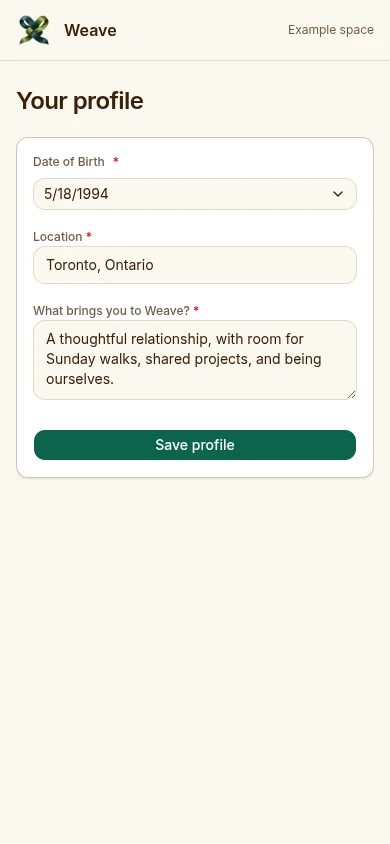
- Open My Profile and choose Edit Profile where shown.
- Review your date of birth, location, relationship intentions, and required fields. Follow the validation beside each field.
- Save once and wait for completion before leaving.
- Review the saved profile and any summary based on your interview. Update your underlying information if it no longer reflects you.
Add photos thoughtfully #
Use the profile's upload controls and wait until each upload finishes. Choose clear photos you are comfortable using. A live photo taken later in a match conversation is separate from these uploads.
Set location and proximity #
Review the location and city proximity controls. Use My Location asks for consent and browser location permission. Check the saved city or area afterward and adjust the proximity preferences offered.
If location access is unavailable, use the location fields offered by the form. You can revisit browser site permissions later.
Continue your interview #
- Open Interview and choose the available text or voice experience.
- Answer the questions about your preferences or values, using examples when useful.
- Finish the required questions. Optional questions add detail; your dashboard shows your own remaining count.
- Return to Matches to check completion. Continue the interview later when you want to add context.

Understand completion #
Matches shows required questions, optional questions, photos, and profile progress. Use those indicators to find what remains. A complete profile makes you ready for matching; it does not guarantee that a compatible person will be available immediately.